Export to DATEV
A DATEV export takes the released invoices and credits of a profile’s company with a document date in the period and writes them as one ZIP file for DATEV. Setting up the company and the profile is DATEV.
Export a period
Section titled “Export a period”-
Open Finance → DATEV Exports and choose Create.
-
Choose the Profile, and set Period From and Period To, such as the first and last day of a month.
-
Choose Save. The export starts in the background. While it runs, File and Failure are both empty.
-
When File shows Open file, choose it to download the ZIP. Hand it to your tax advisor or import it into DATEV.
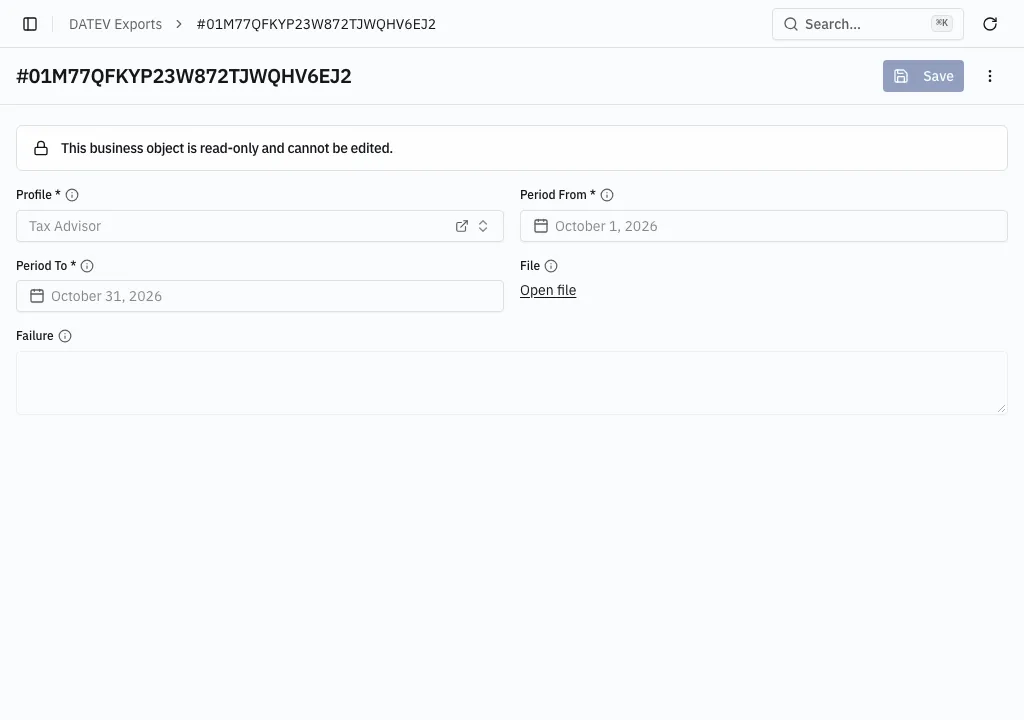
A finished export cannot be edited. To export the period again, create a new export.
What the file holds
Section titled “What the file holds”A DATEV Format (EXTF) export holds the posting batch (Buchungsstapel) and the master data (Debitoren) of every customer in it that has its own DATEV customer account.
A DATEV XML Interface export holds each invoice’s posting data with its issued PDF, for import through DATEV Belegtransfer into DATEV Unternehmen online.
When an export fails
Section titled “When an export fails”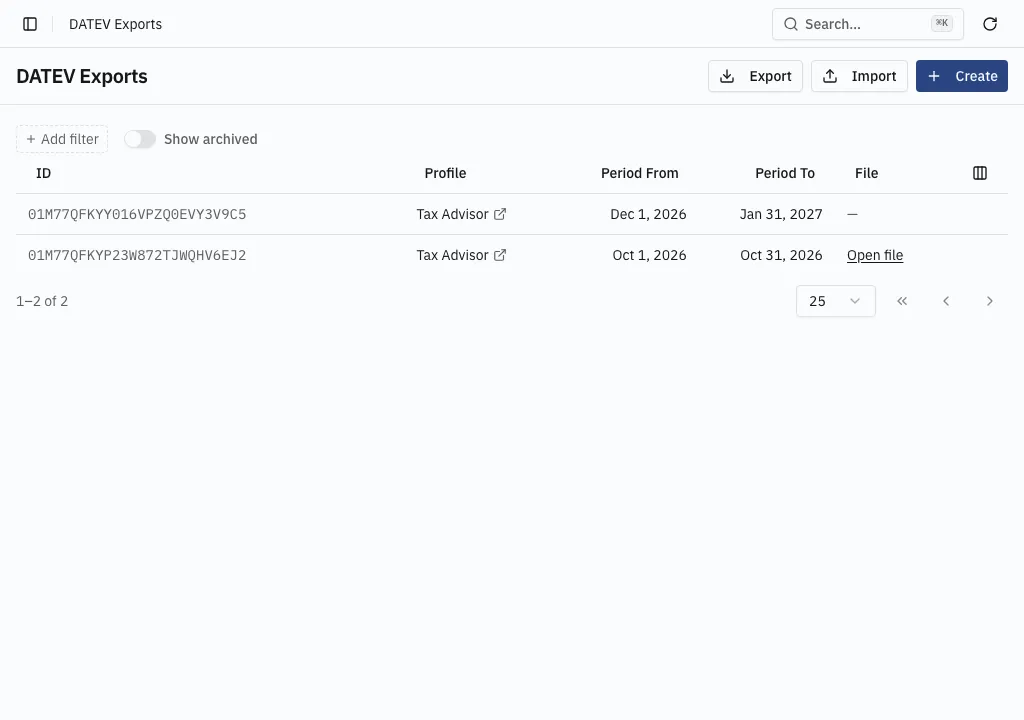
An export has a file or a failure, never both. DATEV receives a period whole or not at all: if one invoice cannot go to DATEV, the whole export fails, and Failure names every such invoice by number with its reason, one per line. Common reasons:
- No revenue account on the profile matches the invoice’s tax handling, VAT category and rate.
- A text breaks the rules for voucher field 1 or 2.
- For the XML interface, the invoice has no issued PDF yet. OnERP stores it shortly after release.
Some failures concern the export as a whole:
- For DATEV Format, the company has no DATEV Adviser Number or DATEV Client Number.
- For DATEV Format, the period runs past the end of a fiscal year. DATEV takes one fiscal year per file.
- For DATEV Format, a text holds a character DATEV files cannot carry.
Fix the profile, the company or the customer, then create a new export for the same period.
Delete an export
Section titled “Delete an export”An export made by mistake is removed in two steps. Choose More actions (⋮) → Archive, then More actions (⋮) → Delete on the archived export. It is gone for good. Deleting an export changes nothing on the invoices.