Your account
Open settings from the workspace name at the top of the sidebar. Account and Preferences are yours alone; nobody else in the workspace sees them.
Change your name or password
Section titled “Change your name or password”-
Open Account.
-
Edit the Name shown to colleagues and in record history, and save.
-
To change the password, enter the Current password and a New password, then choose Change password.
The email address is the sign-in address and cannot be changed here.
Connected apps
Section titled “Connected apps”An outside tool — an AI assistant such as Claude, a script someone runs on their own machine — can be allowed to use OnERP as you, under your own roles. It asks once, in the browser: you sign in as usual, choose the workspace it may work in, and see what it is asking for before you allow it.
Account lists every tool you have allowed, what it was allowed to do, and when. Revoke ends that access at once — the tool stops working immediately, and letting it back in means granting it again.
Language and theme
Section titled “Language and theme”-
Open Preferences.
-
Set the Language. Automatic follows the browser’s language.
-
Set the Theme — Light, Dark, or System, which follows the device.
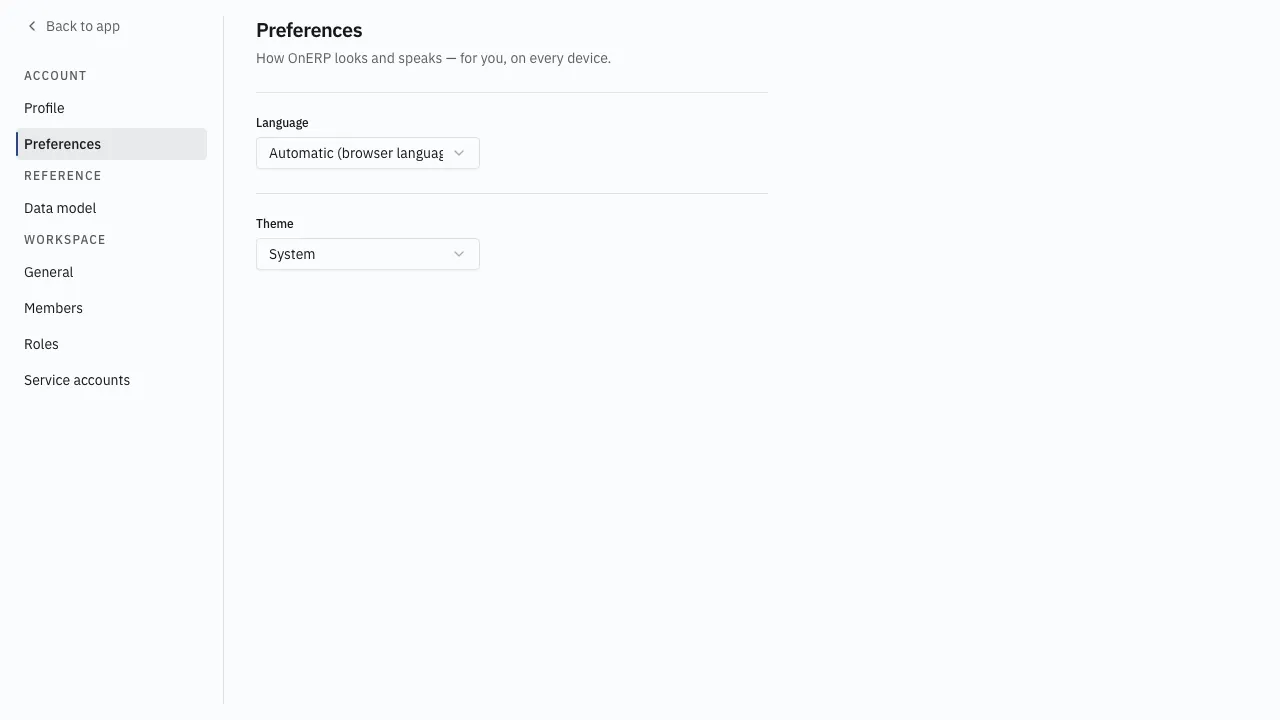
Both settings follow the account rather than the browser, so they apply on every device signed in as you.
Switching workspaces
Section titled “Switching workspaces”The same menu lists every workspace the account belongs to. Switching changes all the data on screen; nothing crosses between workspaces.
Leaving
Section titled “Leaving”Removing an account from a workspace is an administrator’s job under Members — see People and access. Access ends immediately, and coming back takes a new invitation.