Lists
Every list screen behaves the same way, so the habits learned on one carry to all of them.
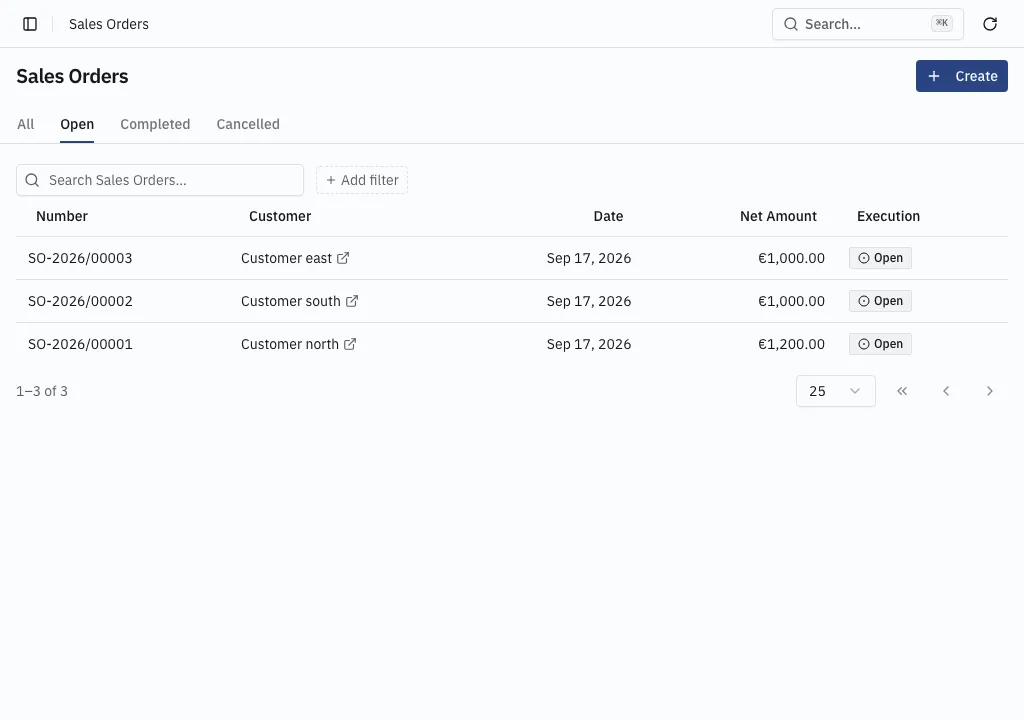
Tabs across the top of a list are saved views of the same data — Open, Completed, Cancelled, All on sales orders; Invoices, Cancellations, All on invoices.
A tab narrows the list without discarding filters. Switching tabs never clears what has been typed or chosen, so a filter can be set once and carried across tabs.
Filters
Section titled “Filters”Add filter opens the list of fields that can be filtered. The fields are searched by name, so a long list is reached by typing rather than scrolling.
A filter on a reference field — a customer, a product, a location — searches that record’s own list to pick a value.
Show archived is a filter like any other. Without it, archived records are absent from lists and pickers.
Removing a filter widens the result: it includes every value again rather than selecting the empty one.
Paging
Section titled “Paging”Lists page rather than scrolling endlessly. The footer holds first, previous and next page, the rows-per-page control, and the range being shown.
A page boundary never changes a summary quantity above the table. The summary counts everything the filters select, not what happens to be on screen.
Changes made elsewhere
Section titled “Changes made elsewhere”A list stays current while it is open. A record someone else creates, edits or archives shows up without reloading the page. Initials in a circle, next to the first column, mark a record someone is editing right now — see Editing at the same time.
Opening a record
Section titled “Opening a record”Clicking a row opens the record. A reference shown on a form opens in a new browser tab, so the record being edited is not lost.
When a list is empty
Section titled “When a list is empty”- No results — nothing matches, and nothing has been filtered.
- No matches. Clear the filter to see all rows. — the filter is what is hiding them.
Drafts never appear in any list, whatever the filters say. A draft is reached by its own link — see Drafts and releasing.