Picking
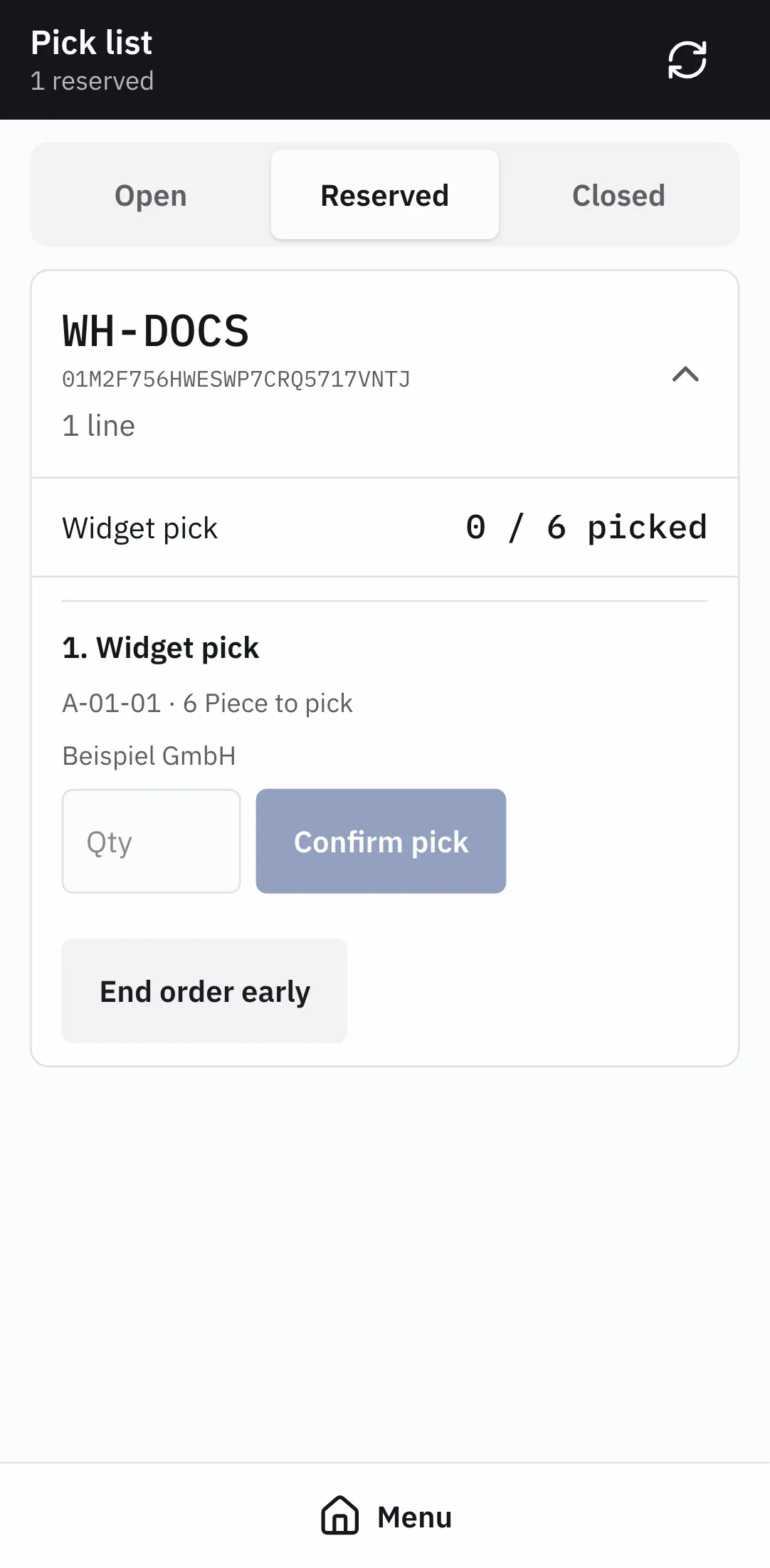
Picking lists the fulfillment orders waiting to be worked. Three tabs across the top split them: Open, Reserved, Closed.
Each card shows the warehouse it draws from — or Any location — and how many
lines it has. Expanding it lists the products with picked / ordered against each.
Pick an order
Section titled “Pick an order”-
Open the Open tab and expand the order to work.
-
Choose Reserve stock. The system picks real bins and lots and holds them. If there is not enough free stock the reservation is refused whole, and nothing is held.
-
The order moves to Reserved and now shows what to fetch, bin by bin and lot by lot.
-
Go to the bin. Enter the quantity taken against that row and choose Confirm pick. The goods leave recorded inventory at that moment.
-
Repeat for each row. Confirm as the goods go into the box — no staging location or box registration is needed.
-
The order closes on its own once everything is picked.
Picking more than the hold keeps will not post, so a wrong bin or an over-scan fails rather than corrupting the count.
Undo a pick
Section titled “Undo a pick”Enter the quantity physically put back against the row it came from and choose Undo pick. This posts a receipt and subtracts the picked quantity on both the fulfillment order and the sales order.
No more can be returned than was picked from that bin, lot and owner. On a reserved order the returned quantity rejoins the hold and can be picked again. On a closed order it becomes available stock for new fulfillment work.
End an order early
Section titled “End an order early”Choose End order early when the goods are not there. Whatever the hold still keeps returns to available stock for anyone, and the order is marked Closed.
Picking short is normal. Pick what is there and end the order; nothing forces a correction at scan time.
What the office sees
Section titled “What the office sees”The same documents, with amounts and parties attached — see Pick an order and Fulfillment.