Create an order
A sales order records what a customer wants to buy.
Raise one
Section titled “Raise one”-
Open Sales → Sales Orders and choose Create.
-
Pick the customer. Their default profile fills in beside them; change it to sell as a different identity.
-
Add line items: choose a product, set the quantity. The product’s sales price fills in and can be changed.
-
Save. The order is a draft. Net, Tax and Total appear at the bottom.
-
Choose Release. The order takes its number and appears in the list.
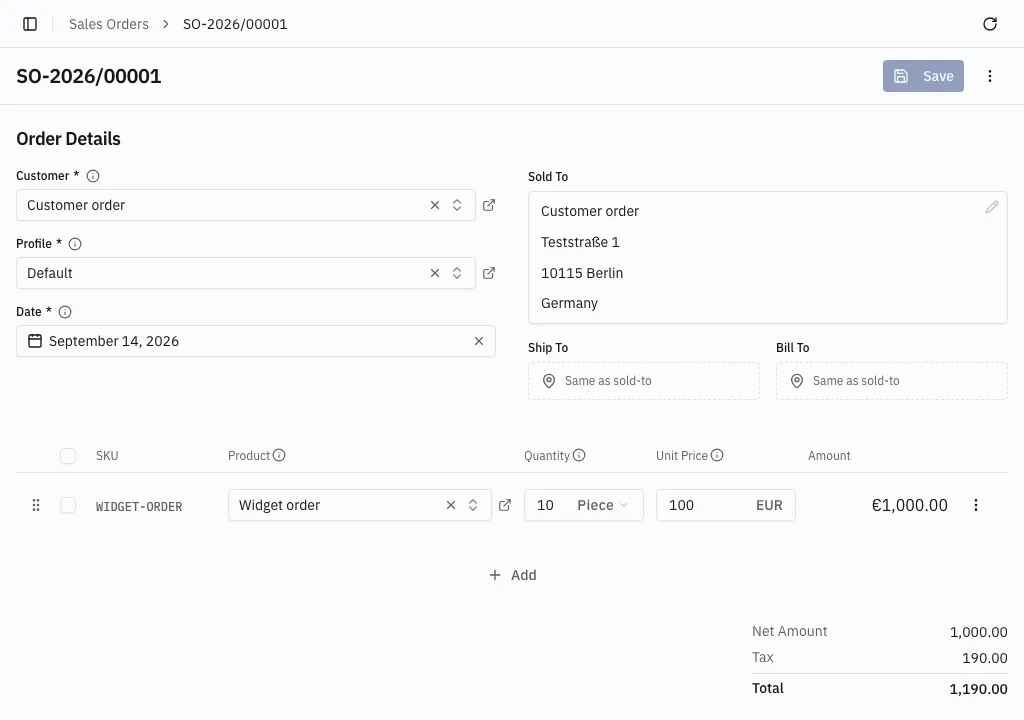
No total and no tax amount is ever typed. Each line shows its amount — quantity × price, less any discount — and the order shows Net, Tax and Total. A €1,000 order to a German customer shows €190 tax and €1,190 total.
Line details
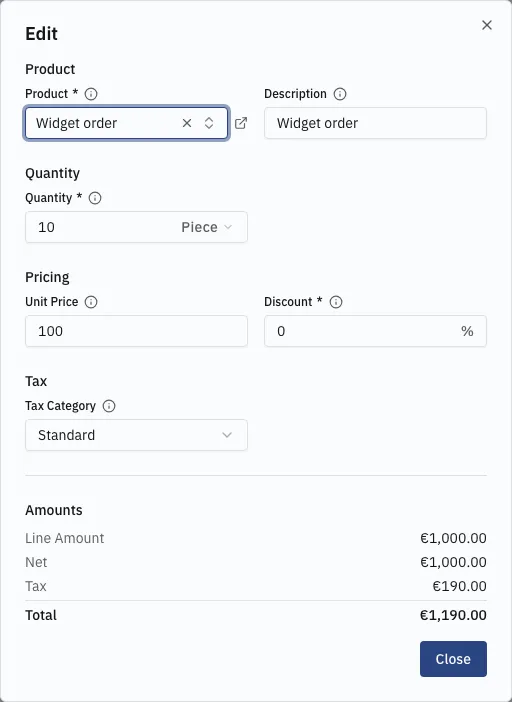
Section titled “Line details”Open a line’s row menu (the ⋯ at the end of the row) and choose Edit to add a discount or review the line’s figures. Drag the handle to reorder lines; remove a line from the same menu.
The tax
Section titled “The tax”Tax is automatic, and no rate is chosen. Selling within your own country charges normal VAT. Selling to a business in another EU country that holds a VAT ID charges none — the customer accounts for it. Shipping outside the EU charges none.
The order’s VAT section shows how it was decided.
After release
Section titled “After release”A released order stays fully editable while it is Open, including after it has been invoiced, and locks once it reaches Completed or Cancelled. The ⋮ menu lists the actions that apply right now — Create Invoice, Create Fulfillment Order, Complete, Cancel order.
Which actions appear when, and what each does to the order, is in What a sales order’s status means.
Finding orders
Section titled “Finding orders”The list opens on Open. Switch to Completed, Cancelled or All. Switching tabs never clears a filter — see Lists.