Sales prices
Products are not priced on the order. Prices are set up once and fill onto documents from there, under Master Data → Sales Prices or a product’s Sales Prices tab.
Create a price
Section titled “Create a price”-
Choose Create.
-
Under General, pick the Product and the Currency. For a price everyone gets, leave the rest of the section empty; otherwise name a Business Partner or a Business Partner Group, never both.
-
Under Pricing, enter the Amount and the Unit it is per. Add a Quantity From for a bulk tier.
-
Under Validity, set an optional Valid From and Valid To.
-
Save.
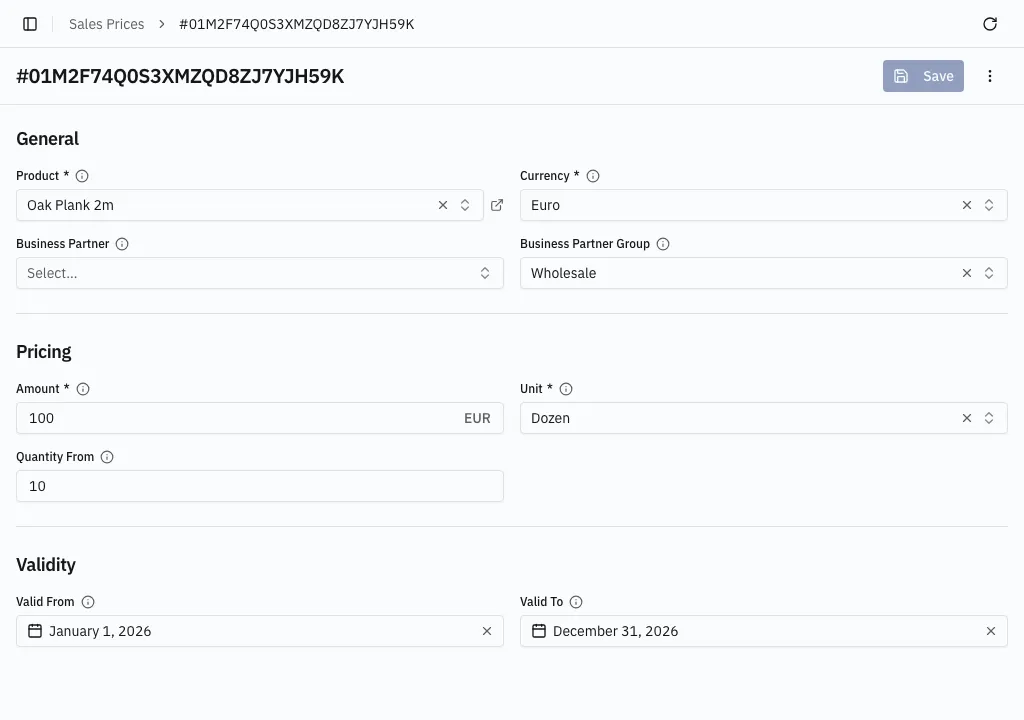
The Unit is not free choice. It must share the product’s base-unit dimension — Gram or Tonne for a product based in Kilogram, never Hour.
Which price a line gets
Section titled “Which price a line gets”The most specific match wins — a price for that exact partner beats a group price, which beats an everyone price — and the largest tier the line reaches breaks the tie. It applies only in the document’s currency, exactly, and only if valid on the document’s own date.
When nothing matches, the line keeps the price it has. It does not go blank.
How a price is chosen covers the full rule.
Typing a price by hand
Section titled “Typing a price by hand”A unit price typed onto a line stands for that save, but it is not a permanent override. Changing the line’s product, partner, unit, quantity or currency, or the document’s date, prices the line again from the price records. A figure that has to survive belongs in a sales price.
A line’s Discount is a different thing: a percentage entered per line, never filled in from a price record.